

Creating a smooth website from a design file often feels harder than designing the layout itself. That is why mastering Figma to Elementor conversion has become essential for modern designers, freelancers, and agencies in 2026. A clean workflow helps you save hours, reduce layout errors, and improve responsive performance across devices.
Today’s professionals use AI-powered website conversion, advanced Figma auto layout systems, and smart Elementor responsive design settings to speed up projects without sacrificing creativity. Whether you build SaaS landing pages, online stores, or portfolio websites, understanding the right WordPress page builder workflow can dramatically improve efficiency, design consistency, and client satisfaction while helping you launch polished websites much faster than traditional development methods.
Why Figma to Elementor Conversion Still Matters in 2026

The digital landscape changes rapidly. However, Figma design to Elementor workflows still dominate because they reduce friction between design and development. Agencies across the USA now prefer no-code website development and low-code web design tools because clients demand faster delivery times. Elementor remains popular due to its visual editing system and flexible customization controls.
The rise of drag-and-drop website builder technology changed how designers build websites. Instead of coding every section manually, creators now use Elementor flexbox containers, reusable templates, and Elementor global widgets for scalable projects. This creates a smoother design-to-development workflow while preserving layout accuracy and responsive behavior.
| Workflow Type | Average Build Time | Flexibility | Skill Level |
| Manual Coding | 20–40 Hours | High | Advanced |
| Elementor Workflow | 6–12 Hours | Very High | Beginner-Friendly |
| AI Conversion Workflow | 1–4 Hours | High | Beginner to Advanced |
What Is Figma to Elementor Conversion?
At its core, Figma to Elementor conversion means transforming a visual design into a fully working WordPress website using Elementor. Designers first create layouts inside Figma. Developers or automation tools then recreate those designs using Elementor widgets, containers, and responsive controls.
This process now includes Figma export plugins, Elementor JSON templates, and advanced Figma to website automation platforms. Instead of rebuilding every section manually, modern tools analyze layers, spacing, typography, and layout structures automatically. That dramatically improves the overall UI to WordPress conversion process.
“Good workflows remove repetition. Great workflows remove frustration.”
Best AI Tools for Figma to Elementor Conversion in 2026

The market now offers several powerful best Figma to Elementor tools designed for agencies, freelancers, and startups. These tools use machine learning to improve responsiveness, spacing, and layout structure automatically. Modern AI website builder tools also reduce repetitive tasks that once slowed down designers.
Many professionals now rely on AI conversion plugins like Figmentor plugin, Builder.io, Locofy, and Anima. These platforms simplify responsive web layout conversion and reduce human error during design transfers. The latest AI design-to-code tools also support clean HTML export and responsive layout mapping.
| Tool | Best Feature | Pricing | Best For |
| Locofy | Smart Auto Layout Detection | Paid | Agencies |
| Anima | Responsive Export | Free + Paid | Freelancers |
| Builder.io | Visual Integration | Paid | SaaS Teams |
| Figmentor | Elementor JSON Export | Paid | WordPress Users |
The demand for AI website conversion software keeps growing because businesses want efficiency. Teams now search for best AI tools for web designers that support collaboration, responsive scaling, and fast deployment.
Key Features to Look for in a Figma to Elementor Tool
The best tools simplify complicated processes. Strong platforms support Figma auto layout, responsive containers, and reusable widgets. They also improve website design handoff between designers and developers.
Another important feature involves design system automation. Good software maps Figma design tokens, colors, spacing, and typography directly into Elementor settings. That creates consistency across large projects and improves long-term scalability.
| Feature | Why It Matters |
| Auto Layout Support | Preserves responsiveness |
| JSON Export | Speeds up imports |
| Design Token Mapping | Keeps branding consistent |
| Responsive Controls | Improves mobile layouts |
| SEO Optimization | Helps ranking performance |
How to Prepare Your Figma Layout Before Exporting to Elementor
Preparation determines success. Poorly structured designs usually break during conversion. Smart designers organize layers, use proper naming systems, and maintain consistent spacing throughout projects. That improves the entire Elementor UI design workflow.
Strong preparation also improves Figma responsive design behavior. Designers should use scalable containers, percentage widths, and responsive frames whenever possible. Proper Figma typography settings reduce alignment issues during exports.
For example, experienced agencies often build reusable Figma component libraries before starting client work. That allows teams to replicate layouts quickly while maintaining visual consistency across multiple projects.
Manual vs AI-Powered Figma to Elementor Conversion — Which Is Better?
Manual workflows still work well for custom projects. Designers retain full control over layout structure, animations, and responsiveness. However, manual processes consume time and create repetitive tasks that reduce productivity.
Modern AI-powered website conversion systems solve those bottlenecks.Similar to how AI is transforming modern video production workflows, tools compared in our Runway AI versus traditional editing breakdown show how automation is reducing repetitive creative tasks across multiple digital industries. They automate layout recreation, responsive behavior, and style mapping. Most agencies now combine both methods for maximum flexibility. They automate repetitive sections while manually polishing advanced interactions.
| Method | Pros | Cons |
| Manual Workflow | Full Control | Time Consuming |
| AI Workflow | Faster Delivery | Minor Cleanup Needed |
| Hybrid Workflow | Balanced Approach | Requires Planning |
The rise of AI tools for productivity transformed modern agencies. Teams can now deliver projects faster without sacrificing design quality.
Step-by-Step Figma to Elementor Layout Conversion Workflow
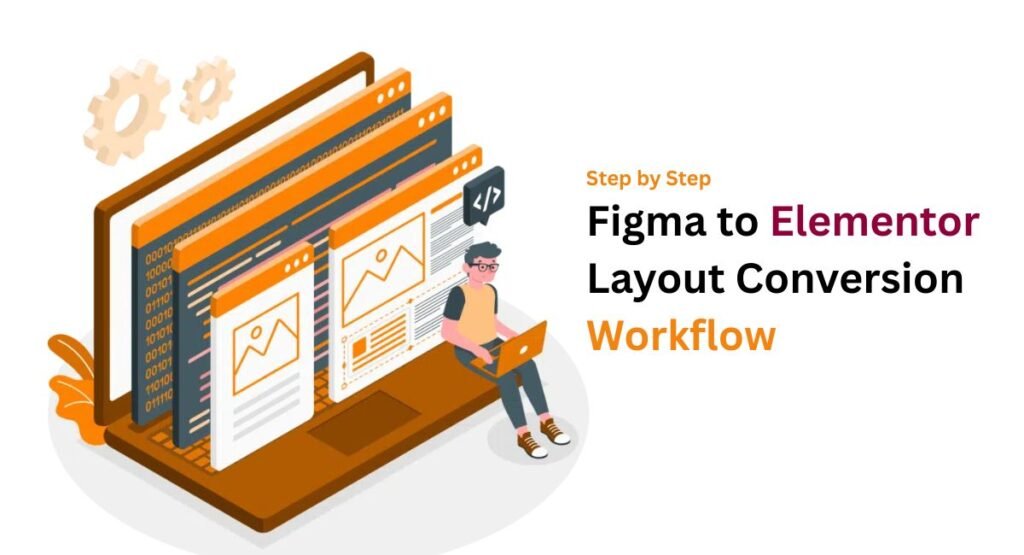
A successful Elementor conversion workflow starts with organized assets. Designers first export SVG icons, optimized images, and typography styles from Figma. Then developers recreate layouts using Elementor containers and responsive controls.
Next comes responsive refinement. Teams adjust spacing, typography scaling, and mobile behavior using Elementor’s breakpoint controls. Proper Elementor responsive design tips help maintain consistency across tablets, desktops, and smartphones.
| Workflow Stage | Goal |
| Asset Export | Prepare graphics |
| Global Settings | Match styles |
| Layout Build | Create sections |
| Responsive Editing | Optimize devices |
| QA Testing | Remove bugs |
This structured Figma to Elementor step-by-step guide dramatically improves production speed while reducing revisions.
Latest Elementor and Figma Updates You Should Know About
Elementor introduced major improvements to container systems recently. The new Elementor container layout tools now support advanced flexbox behavior, nested layouts, and cleaner responsiveness. That makes complex page structures easier to manage.
Figma also improved collaboration features through advanced developer handoff tools. Teams now use Figma collaboration tools and design inspection systems to simplify communication between departments. These upgrades strengthen modern automated web design workflow systems.
Many developers now compare Elementor vs Webflow and Elementor vs Framer because all three platforms compete heavily in visual web creation.
Common Figma to Elementor Layout Mistakes (And How to Avoid Them)
One major problem involves ignoring Figma constraints and breakpoints. Designers often create desktop layouts that collapse badly on smaller devices. Responsive testing should begin early, not after development finishes.
Another common issue involves oversized images and poor optimization. Weak image handling damages performance scores. Smart teams follow strict Elementor performance optimization tips and image compression practices before deployment.
| Common Mistake | Solution |
| Fixed Width Layouts | Use Flexible Containers |
| Large Images | Compress Assets |
| Poor Typography Scaling | Use Responsive Fonts |
| Excess Animations | Optimize Effects |
These adjustments improve both usability and loading speed.
Best Practices for Creating Pixel-Perfect Elementor Layouts
Pixel-perfect websites require discipline. Designers should align Elementor global settings with the original Figma design system before building pages. This creates visual consistency across headings, buttons, and spacing structures.
Teams should also focus on Elementor SEO optimization and mobile usability. Fast websites rank better on Google and improve user engagement. Strong Elementor page speed optimization practices reduce bounce rates and improve conversion potential.
Experienced agencies also use reusable Elementor templates for agencies because template systems reduce development repetition while maintaining branding consistency.
Real-World Use Cases for Figma to Elementor Conversion
Modern SaaS startups often use Figma to Elementor use cases for landing pages, dashboards, and product launches. These companies need rapid deployment and consistent branding across every page.
Agencies also depend heavily on Elementor workflow for agencies because they handle multiple clients simultaneously. Fast conversion systems increase scalability while improving profitability. Freelancers benefit too because streamlined workflows allow them to manage more projects monthly.
| Industry | Main Benefit |
| SaaS Startups | Faster Launches |
| Agencies | Higher Productivity |
| eCommerce Stores | Better Customization |
| Freelancers | Time Savings |
Figma to Elementor Pricing Comparison in 2026

Pricing varies dramatically depending on features and automation quality. Some free vs paid Figma plugins support basic exports only. Premium tools include responsive AI systems, JSON exports, and scalable workflow management.
Many agencies now evaluate Figma to Elementor converter pricing carefully because long-term ROI matters more than upfront cost. A tool that saves 40 hours monthly easily pays for itself.
| Tool Type | Average Monthly Cost |
| Free Plugins | $0 |
| Mid-Level Tools | $15–$50 |
| Enterprise AI Platforms | $100–$500 |
Smart businesses often choose premium systems because faster production increases client capacity.
Best Alternatives to Figma to Elementor Conversion Tools
Some teams prefer Framer or Webflow instead of Elementor. The website builder comparison between platforms usually depends on customization needs, SEO control, and ease of use.
While Elementor excels inside WordPress ecosystems, Framer focuses heavily on animations and startup websites. Webflow attracts advanced designers who want more layout freedom. However, Elementor still dominates among best WordPress design workflow systems because of plugin flexibility and massive community support.
Pros & Cons of Using AI for Figma to Elementor Conversion
AI speeds up production dramatically. Modern AI-powered no-code platforms automate layout recreation, spacing analysis, and responsiveness. Agencies using these systems complete projects significantly faster than traditional teams.
However, AI still requires human supervision. Complex animations, advanced interactions, and unusual layouts often need manual refinement. The smartest workflows combine automation with creative oversight.
| Pros | Cons |
| Faster Production | Cleanup Sometimes Needed |
| Better Scalability | Learning Curve |
| Reduced Repetition | Limited Creative Interpretation |
| Improved Consistency | Plugin Dependency |
Choosing the Best Figma to Elementor Workflow for Your Needs
Freelancers often prefer lightweight workflows with affordable plugins and simple automation systems. Agencies usually adopt full-scale Elementor workflow automation because they handle larger workloads and tighter deadlines.
Teams should also evaluate long-term scalability. A workflow that works for two projects may collapse under fifty. The best systems support collaboration, responsive design, reusable templates, and scalable asset management.
Many professionals now rely on best SaaS tools for agencies, AI tools for developers, and advanced SaaS tools for UI/UX designers to streamline production pipelines.
Final Verdict — Is Figma to Elementor Conversion Worth It in 2026?
Absolutely. Modern Figma to Elementor conversion workflows save time, improve consistency, and reduce repetitive labor. Businesses now demand faster launches and scalable web experiences. Manual development alone no longer satisfies modern production speed expectations.
The smartest agencies combine human creativity with automation. They use AI tools for WordPress development, optimized responsive systems, and scalable templates to deliver faster results. As AI continues evolving, the future of WordPress page builder workflow systems looks even more efficient and exciting.
FAQs
How to translate a Figma design into Elementor?
You can translate a Figma design into Elementor by exporting assets, organizing your layout properly, and recreating sections using Elementor containers and widgets. Many designers now use Figma to Elementor conversion tools and AI-powered website conversion platforms to automate spacing, typography, and responsive layouts for faster website development.
Can ChatGPT convert Figma design to code?
ChatGPT can help generate HTML, CSS, and basic WordPress code from a Figma layout description. However, it usually works best alongside specialized AI design-to-code tools or Figma to WordPress conversion tools because visual accuracy and responsive behavior still require manual adjustments and testing.
When not to use auto layout Figma?
You should avoid using Figma auto layout when creating highly artistic designs, overlapping visual effects, or irregular positioning that depends on fixed placement. Auto layout works best for structured sections, responsive grids, buttons, cards, and scalable interface systems within a modern design-to-development workflow.
Can I learn Figma in 2 days?
Yes, you can learn basic Figma skills in two days if you focus on frames, components, typography, and responsive layout tools. However, mastering advanced workflows like Figma responsive design, prototyping, and Figma design system management usually takes several weeks of real project experience.
Why is Figma falling?
Some users feel Figma faces stronger competition because newer AI website builder tools, automation platforms, and visual coding systems now offer faster workflows. However, Figma still remains one of the most popular website prototyping tools because of its collaboration features, scalability, and strong community support.

Welcome to Corexity! I’m Zain Bhatti, an AI-Powered SEO Strategist with 3 years of experience. I help you master the latest AI tools and rank higher with simplified, high-impact content strategies. Let’s grow together!